
Settings
How user settings work — the preferences that customize your app experience without affecting the Pi.
Overview
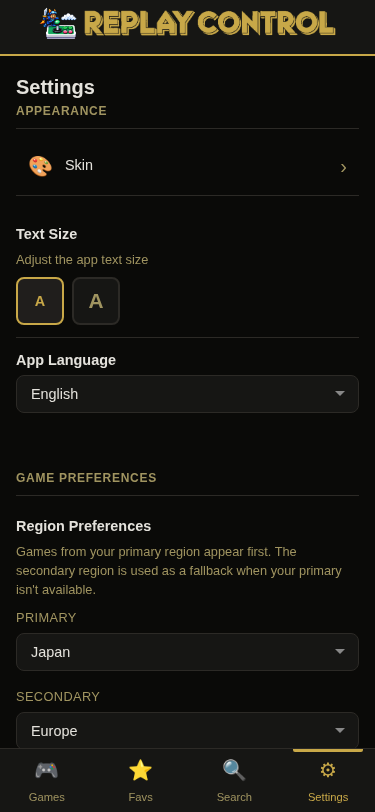
User settings are accessible from the Settings page (/settings) and control how the app displays information, which regional variants you prefer, and how it communicates with external services.
On desktop, the page uses a two-pane layout: a sticky sidebar with scroll-spy navigation on the left, and the settings content on the right. The sidebar highlights the current section as you scroll. On mobile, the sidebar collapses and sections stack vertically.
The seven sections are: Appearance, Library & Games, Device Network, Access & Security, RePlayOS, Updates, and System.
Navigation Rule
The main Settings page should stay scannable. Keep summaries and low-risk, single-step preferences inline, such as text size, app language, region preference, update channel, analytics, connection status, and live system information.
Use a dedicated settings page for anything that handles secrets, changes device or OS state, restarts RePlayOS, changes network/storage identity, is destructive, or needs a multi-step setup flow. Examples include Wi-Fi, NFS, hostname, device password, RetroAchievements credentials, RePlayOS Net Control pairing, logs, GitHub API key, skin selection, and game library metadata.
It is acceptable to repeat a status summary in more than one section when users naturally look for it from different mental models. For example, RePlayOS Net Control pairing belongs on the RePlayOS page, while Access & Security can show a read-only normal-user access summary that links back to the RePlayOS page.
Access & Security
The Access & Security section summarizes local HTTPS, RePlayOS Net Control access, and device password status. The dedicated page owns certificate status, certificate regeneration, device password changes, and links to RePlayOS Net Control for normal-user pairing.
Replay Control uses HTTPS on the local network by default. The HTTP port remains as a guidance and compatibility entry point, while the app and API are served over HTTPS. The certificate is generated locally for the device and may show a trust warning the first time each device opens the app.
The certificate panel shows the covered local names and IP addresses, the current device names and IP addresses, expiration details, and the certificate fingerprint. Normal users can view this status; regenerating the certificate requires admin access. Hostname changes made through Replay Control regenerate the certificate immediately. On startup, Replay Control also regenerates the certificate when the saved certificate no longer covers the current hostname or LAN IPs; use Regenerate certificate for recovery or intentional rotation.
Sign In
Replay Control has two access levels:
- Normal user — signs in with the RePlayOS Net Control code and can browse the library, launch games, use player controls, manage favorites, and make normal user-level changes.
- Admin — signs in with the device password and can change Wi-Fi, NFS, hostname, RetroAchievements, RePlayOS pairing, updates, HTTPS certificates, logs, metadata rebuilds, and other device-level settings.
Signed-out sessions can only reach sign-in, setup, static assets, and health/version bootstrap endpoints. Library browsing and device actions require normal-user or admin sign-in.
Before normal sign-in is available, device mode shows a one-time first setup page when first_setup_done is not set. The page explains normal-user versus admin access, shows the default fresh-image password (replayos), asks for the current RePlayOS root password, then marks first setup complete and opens an admin session. Existing installs also see this page once after upgrading to the permission system. Standalone mode bypasses this first setup gate.
Standalone mode, when Replay Control is launched off-device with a local ROM folder, remains open by default and does not require RePlayOS sign-in. Device sign-in, admin unlock, and local HTTPS defaults apply to the RePlayOS device mode.
When a normal user temporarily unlocks admin access, Settings > Access & Security offers Switch to normal user so the session can leave admin mode without a full logout.
Admin unlocks default to 1 hour. Admin users can change the unlock duration from Settings > Access & Security to 1 hour, 3 hours, or 12 hours. Changing the duration applies to the current admin unlock immediately by refreshing it from the time of the change; it does not sign the user out. Opening /login while already signed in returns to the top page.
If a normal user opens an admin-only settings page directly, Replay Control sends them to Access & Security for admin unlock and returns to the requested page after successful elevation.
Region Preference
Primary and secondary preferred ROM region. Options: USA, Europe, Japan, World (default: World). Admin access is required to change these preferences. Affects:
- Sort order within system ROM lists (preferred region first)
- Search scoring (preferred region gets a bonus)
- Recommendation deduplication (picks the preferred-region variant when multiple exist)
Language Preference
Primary and secondary metadata language (e.g., English, Spanish, Japanese). Defaults based on your region preference. Admin access is required to change these preferences. Used for sorting game manual search results by language relevance.
The app interface language is separate from the metadata language preference and remains available to normal users from Settings > Appearance.
RetroAchievements
Configure your RetroAchievements username and password from Settings > RetroAchievements. The password field is always blank when the page opens; Replay Control only shows whether a password is already saved.
Credentials are saved together. Enter both username and password to set the account, or use Clear & Reboot RePlayOS to remove both. Changing the username also requires entering the password again.
Use Save & Reboot RePlayOS to apply changes. Rebooting RePlayOS stops any running game and briefly disconnects the TV frontend.
Wi-Fi, NFS, and RetroAchievements settings use the same apply flow: Replay Control sends the changes through the RePlayOS API, then asks RePlayOS to reboot so the new system-level settings take effect. On development systems outside RePlayOS, these system settings are skipped.
RePlayOS Net Control
The Net Control connection powers launching games from Replay Control, the Now Playing display, and the player controls. Set it up from Settings > RePlayOS Net Control, either automatically (Replay Control enables Net Control and restarts RePlayOS for you) or manually by enabling Net Control on the TV and typing the code it shows.
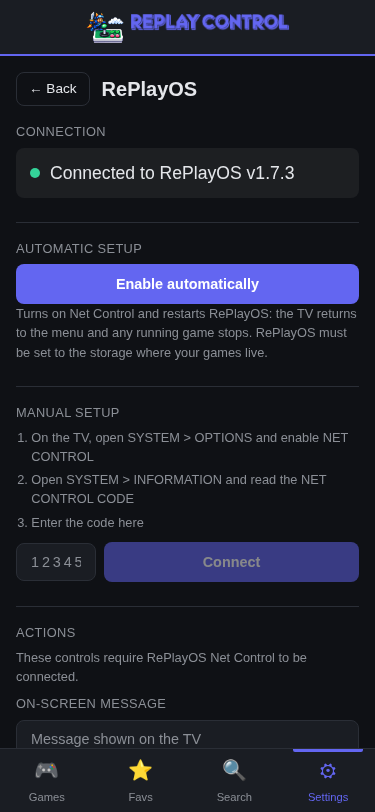
The same Net Control code is also the normal-user sign-in code for Replay Control. To sign in as a normal user, open SYSTEM > OPTIONS on the RePlayOS TV and enable NET CONTROL, then open SYSTEM > INFORMATION and enter the NET CONTROL CODE shown there.
The status card always shows the current connection state, and a Check again action re-tests it. If the code is reset on the TV, Replay Control detects the old stored code being rejected on the next probe or Net Control action, shows the unauthorized state, and lets you reconnect from the same page. Background detection does not delete app sessions; sessions tied to the old code stop working after Replay Control stores a new Net Control code.
The RePlayOS controls can show a short message on the TV for 1, 3, 5, or 10 seconds. Replay Control remembers the duration used for the next message.
Font Size
Normal or large text. Applied across the entire app.
Skin / Theme
The app ships with 11 built-in skins that control the color scheme of the web UI: REPLAY (default), MEGA TECH, PLAY CHOICE, ASTRO, SUPER VIDEO, MVS, RPG, FANTASY, SIMPLE PURPLE, METAL, and UNICOLORS. Each skin defines a full color palette — background, surface, text, accent, and border colors — applied via CSS custom properties.
Skin sync follows RePlayOS’s bundled global skin. When RePlayOS selects a custom global skin, Replay Control uses the REPLAY palette. Per-system skin overrides on the TV do not change Replay Control’s palette.
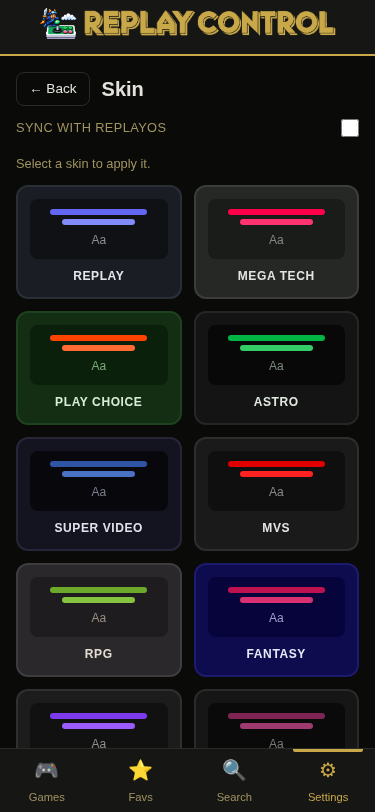
Browse and apply skins from Settings > Skin. The skin page shows all available skins with color previews, the currently active skin marked, and a one-tap apply.
Sync Mode vs Manual Override
- Sync mode (default) – the app follows the global skin active on the RePlayOS TV interface. When someone changes the skin on the TV, the web UI updates to the matching Replay Control palette automatically.
- Manual override – pick a specific skin for the web UI, independent of the TV skin. Useful if you prefer a different color scheme on your phone or tablet than what is displayed on the TV.
A toggle at the top of the skin page controls the mode.
Live Push to All Sessions
Skin changes are broadcast instantly to all connected app sessions via server-sent events (SSE). If you change the skin from your phone, every other open tab or installed app view sees the new theme immediately — no refresh needed. This also applies when the skin changes on the TV side in sync mode.
GitHub API Key
Optional GitHub personal access token for downloading thumbnails. Without a key, GitHub API requests are rate-limited to 60/hour; with one, the limit is 5,000/hour.
Update Channel
Choose between Stable (default) and Beta release channels. See Auto-Updates for details.
Analytics
Optional anonymous usage analytics. Opt in or out from the Settings page. When enabled, the app collects anonymous usage data to help improve the product. No personal information or game library contents are transmitted.
System Info
The System section shows storage kind and path, disk totals, network IP addresses, and (on the device) your Raspberry Pi model, CPU temperature, and available RAM. All values refresh automatically every second while the Settings page is open, so temperature and memory stay current without a manual reload.
Version Display
The app version and git hash are shown in the Settings page footer.