
Now Playing
The companion app shows the game currently loaded in RePlayOS. Open browser tabs update automatically when the running game, play state, or disc state changes.
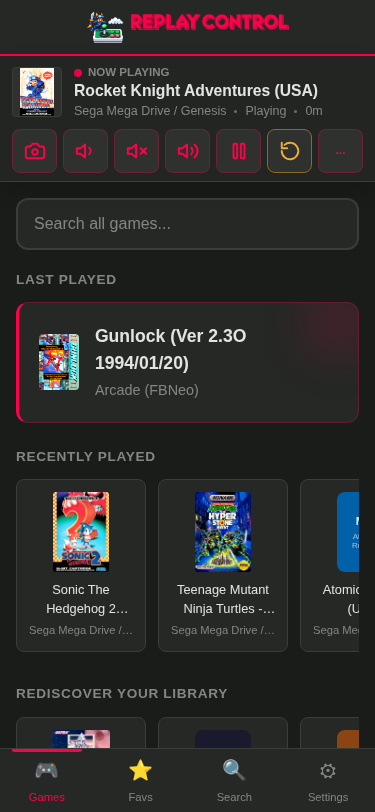
What you see
- Player bar - appears across the app while a game is loaded. It shows cover art, game name, system, play state, elapsed time, and the current disc when RePlayOS reports one. Tap it to jump to the game’s detail page.
- Home page - continues to show normal library sections while the player bar handles the active game.
- Game detail “Now Playing” pill - the title bar of the active game’s detail page shows a pill so you know “this is the one running right now”.
- Elapsed timer - shows how long the current play session has been active.
The app distinguishes between a loaded game, the RePlayOS menu, and RePlayOS being unavailable. During game launches or core transitions, the UI avoids briefly showing stale game information.
For multi-disc games, the player bar also shows which disc is in use (“Disc 1/4”), and it updates as the disc changes on the TV.
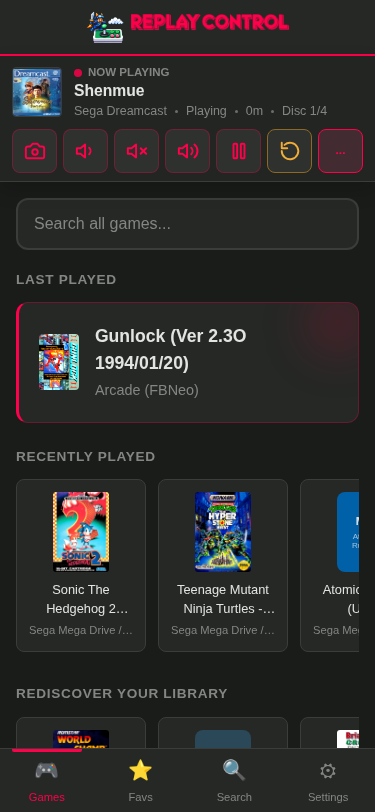
Controls
The player bar carries quick on-TV controls for the running game: take a screenshot, lower the volume, mute, raise the volume, halt/freeze the picture (handy for photographing a CRT), and reset the game. The "…" more button opens a panel for save states.
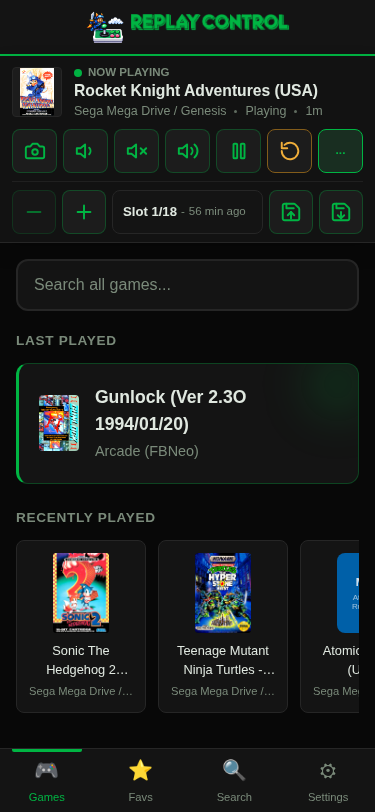
- Save states - pick a slot (1-18) and save or load the game’s state at that slot, straight from the browser. Loading is only offered for slots that already hold a state.
All controls act on whatever RePlayOS currently has loaded, so they work the same whether the game was launched from Replay Control or from the TV.
How it works
Replay Control uses the official RePlayOS Net Control API to read the current status. When RePlayOS reports a loaded game, Replay Control matches that game to the local library and sends the result to connected browsers.
Newer RePlayOS builds can report the system halt state. Replay Control treats halt as distinct from pause and shows halt first when both are present. Older RePlayOS 1.7.3 status responses do not include halt state, so the app keeps the previous paused/menu mapping on those builds.
The browser receives the current state as part of the first page load, so the player bar can appear immediately after refresh. Live updates then keep the page current without browser polling.
Performance notes
Polling the RePlayOS API is lightweight enough to run continuously on a Raspberry Pi. The app avoids sending updates when the active state has not changed, and each browser computes the elapsed timer locally.
Library actions
Favorite and manual actions stay on the game detail page. The player bar stays focused on the active game state and playback controls.