
Getting Started
A quick guide to get Replay Control running on your Pi.
Prerequisites
- A Raspberry Pi running RePlayOS
- ROM files for the systems you want to play
- A computer, phone, or tablet on the same network as the Pi
Install
Open PowerShell, Terminal, or any shell. Connect to the Pi first, then paste the installer:
ssh root@replay.local
# default password: replayos
curl -fsSL https://raw.githubusercontent.com/lapastillaroja/replay-control/main/install.sh | bash
If SSH asks whether you trust the host, type yes and press Enter. When it asks for a password, type replayos; the password will not appear while typing. The installer downloads the latest stable release, installs the service, and starts Replay Control.
If replay.local doesn’t resolve, find the Pi’s IP in your router’s connected-devices list and use ssh root@<ip> instead. For other install options (specific version, running the installer from another computer without SSHing first), see the
Installation guide.
First Launch
Open a browser and go to:
https://replay.local:8443If replay.local does not resolve, use your Pi’s IP address instead (e.g., https://your-pi-ip:8443).
Replay Control uses a local self-signed HTTPS certificate. Your browser will show a security warning the first time you open it; approve the exception for your Pi to continue.
Replay Control then shows a first setup page. Enter the current RePlayOS root password to confirm admin access; on a fresh image the default password is replayos. Password changes are optional and can be done later from Settings > Access & Security.
Tip: To find your Pi’s IP address, check your router’s connected devices list, or run
hostname -Ion the Pi.
After first setup, you will see a “Scanning game library…” banner while the app indexes your ROMs. This runs in the background – the UI is usable immediately, and your library fills in as systems are scanned.
A setup checklist will also appear on the home page with two optional steps:
- Download metadata sources — game descriptions, ratings, and a box art index to enrich your library
- Enable RePlayOS integration — connects Replay Control to RePlayOS Net Control so you can launch games from the browser and see what’s playing on the TV
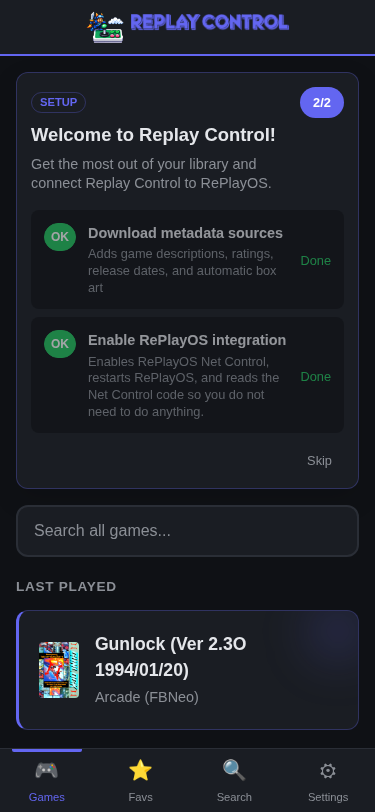
Both are optional — skip and do them later from the Settings page anytime.
Add ROMs
Place ROM files in the roms/ directory on your storage device (SD card, USB drive, or NFS share), organized by system folder. RePlayOS expects a folder per system:
roms/
  snes/
    Super Mario World (USA).sfc
    ...
  sega_smd/
    Sonic The Hedgehog (World).md
    ...
  arcade_fbneo/
    sf2.zip
    ...
On local storage (SD, USB, NVMe), new ROMs are detected automatically. On NFS, use Library Management and Metadata > Rescan Library to reconcile the library after external changes.
Browse Your Library
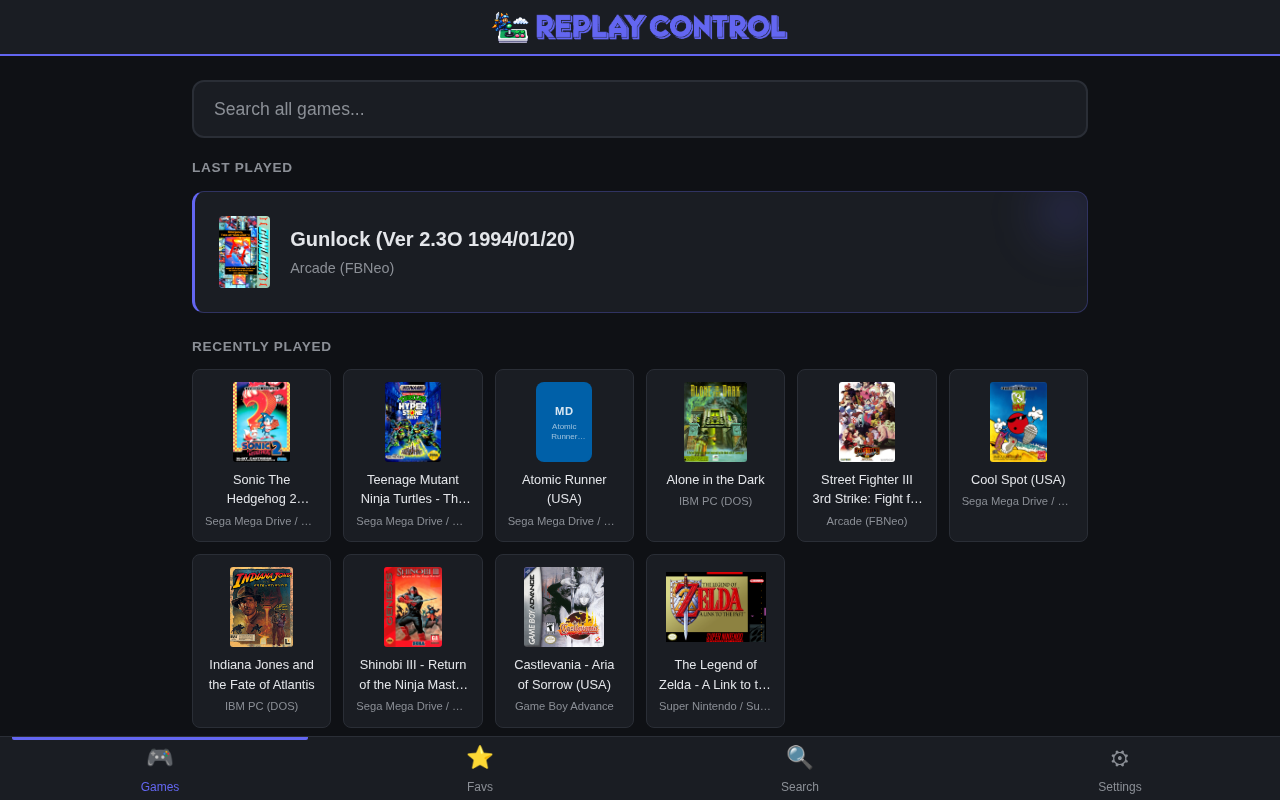
The home page shows your recently played games, library stats, and personalized recommendations. Tap any system card to see its games, or use the search tab to find games across all systems.
You can install the app as a PWA (home screen app) on your phone for quick access.
Enrich Your Library
The app includes built-in data for game names, genres, and player counts. For richer metadata (descriptions, ratings, box art), go to Settings > Library & Games > Game Library. The full maintenance page is documented in Library Management and Metadata.
- Download Metadata – imports game descriptions, ratings, and genres from LaunchBox
- Download Images – fetches box art and screenshots from libretro-thumbnails
Both are optional and require an internet connection on the Pi.
Next Steps
- Game Library – browsing systems, game lists, ROM actions, multi-disc handling
- Favorites – your personal shortlist
- Recently Played – resume games from the home page
- Search – cross-system search and developer pages
- Settings – region, skins, font size
- WiFi, NFS & Pi Setup – Wi-Fi, hostname, NFS shares, password
- Feature overview – full list of features