
Game Library
Browse the systems and games on your RePlayOS storage.
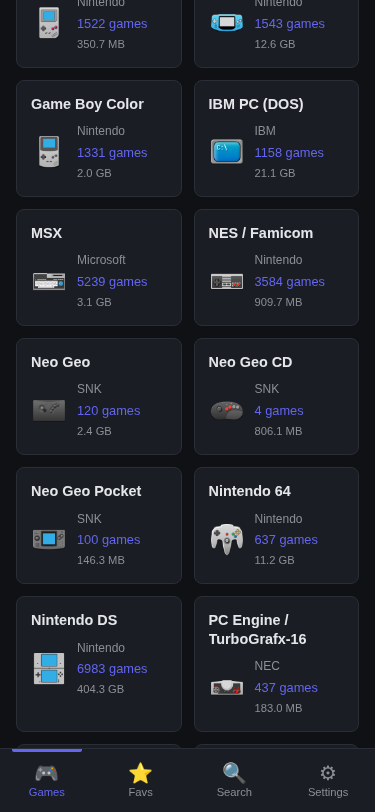
The game library is the main collection view. It answers two questions:
- What systems are available on this storage?
- What games are available inside each system?
It is the console-by-console and arcade-system browsing path, with quick access to game detail pages and launch actions. Cross-system discovery lives in Search, Recommendations, Favorites, and Recently Played.
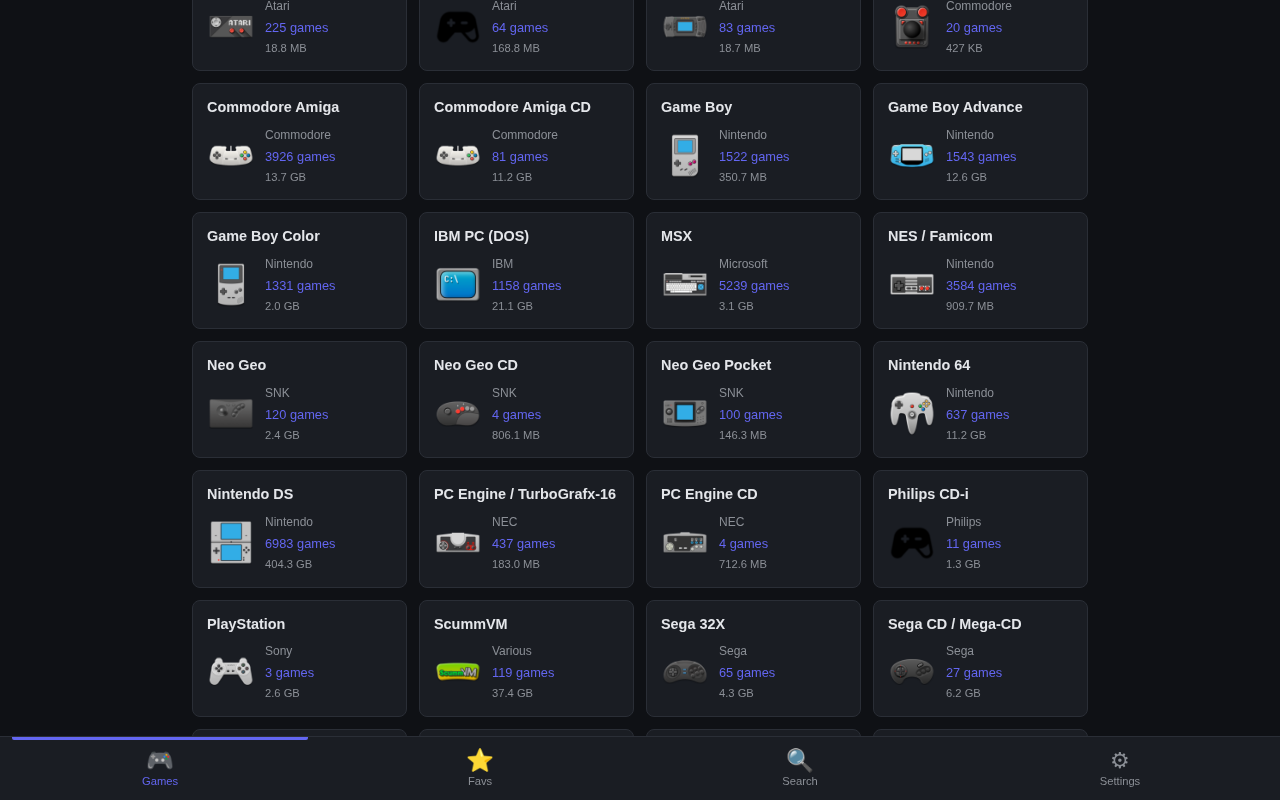
Systems Grid
The library home shows every known system as a card with its display name, manufacturer, game count, and total storage size. Systems with no games are dimmed so you can still see what Replay Control understands without mistaking those systems for active libraries.
Tap a system to open its game list.
System Game List
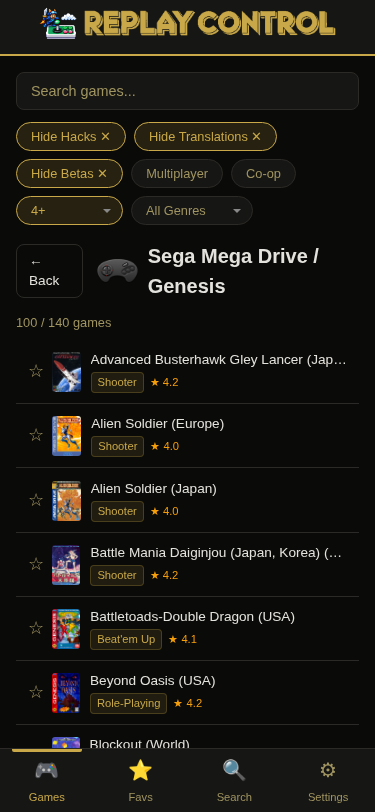
Each system page is built for scanning a large ROM set quickly:
- Box art thumbnails when artwork is available
- Search within the current system
- Random game within the current system
- Fast pagination with infinite scroll
- Filename, storage size, and file format badges
- Favorite and detail-page actions from the game card
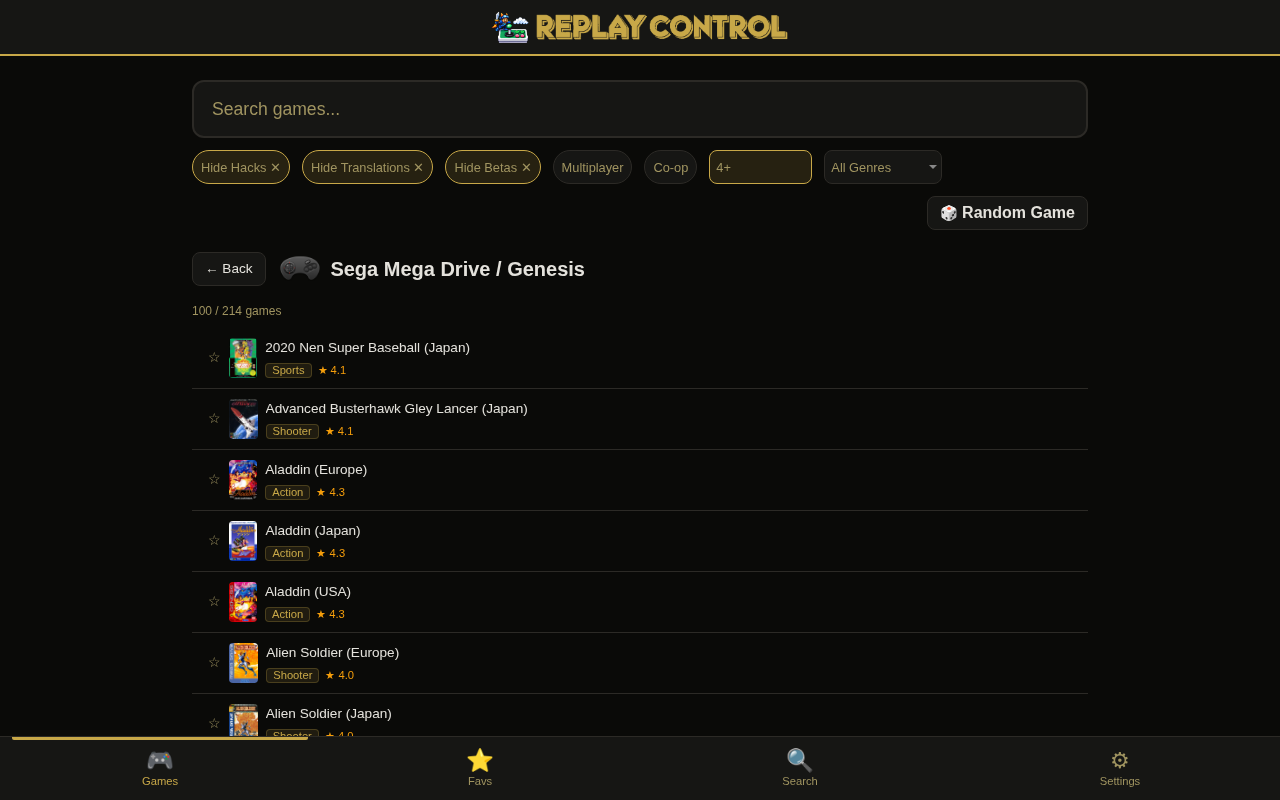
Game Cards
Game cards use the same basic layout across library lists, search results, developer pages, series pages, recommendations, and favorites. That keeps the important actions predictable:
- Tap the card to open the Game Detail page
- Use the star to add or remove a Favorite
- Launch the game from the detail page or supported quick-action surfaces
- Rename or delete ROM files from the game detail page when you are signed in as an admin
Per-Game File Actions
Admin-only file management lives on the Game Detail page:
- Rename – rename a ROM while keeping the file extension safe
- Delete – show a confirmation with the affected files and total size before removing anything
Replay Control handles related files together where possible. Multi-disc playlists, CUE/BIN sets, ScummVM folders, SBI companions, save-friendly launchers, and generated M3U files are treated as part of the same playable game instead of isolated files.
Multi-Disc Games
Games that span multiple discs appear as one playable entry when a playlist is present or can be generated safely:
- M3U playlists hide the individual disc files from the main list
- Disc sizes are added together on the visible playlist entry
- The first referenced disc supplies identity data when a system supports hash matching
- ScummVM launchers are shown as the game, while the referenced folder stays hidden
From a user perspective, a three-disc game appears as one game with the combined size.
PlayStation Portable
On RePlayOS 1.8 or newer, put PSP games in the sony_psp ROM folder. Replay Control recognizes .elf, .iso, .cso, .prx, .pbp, and .chd files. Extract .zip archives before rescanning the library.
Arcade Names
Arcade ROMs often use short internal filenames such as sf2.zip. Replay Control shows readable game titles for MAME, FBNeo, and Flycast arcade systems, while still preserving clone/parent relationships and source categories used elsewhere in the app.
Arcade board pages, board search, and board recommendations are covered separately in Arcade Boards.
Keeping The Library Fresh
On local storage such as SD, USB, and NVMe, Replay Control watches the roms/ directory and refreshes changed systems automatically. Bulk copies are debounced so the library updates after the file operation settles.
On NFS, live filesystem watching is not reliable and periodic probing is avoided so a stale network mount cannot stall the app. Startup scans reconcile the library with the files currently on the share. If you add, rename, or delete ROMs externally while Replay Control is already running, use Library Management and Metadata > Rescan Library when the file operation is done.
For systems with hash-based identity, ordinary startup scans and rescans reuse valid stored identity data for unchanged files. Rebuild Game Library is the full verification path and recomputes eligible hashes. See Library Management and Metadata for when to choose each action.
Startup Behavior
On first launch, after a storage change, or after a rebuild, Replay Control scans visible systems in the background. You can keep browsing while this happens. A banner shows active work such as scanning the library, enriching game data, rebuilding the thumbnail index, or matching ROMs.
If ROM files change while a scan, rebuild, or matching pass is already running, wait for it to finish and run Rescan Library again so the final disk state is reflected.