
Favorites
Keep your RePlayOS favorites visible in Replay Control.
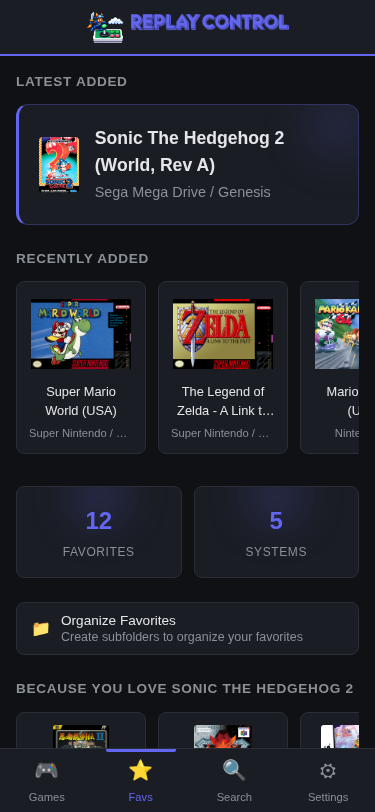
Favorites are not a separate Replay Control-only list. They come from the actual favorites stored by RePlayOS, and changes made in Replay Control sync back to that same source.
Replay Control turns that device shortlist into a richer collection view: artwork, metadata, recently added favorites, and custom organization that makes a large favorites list easier to explore.
Favorite Views
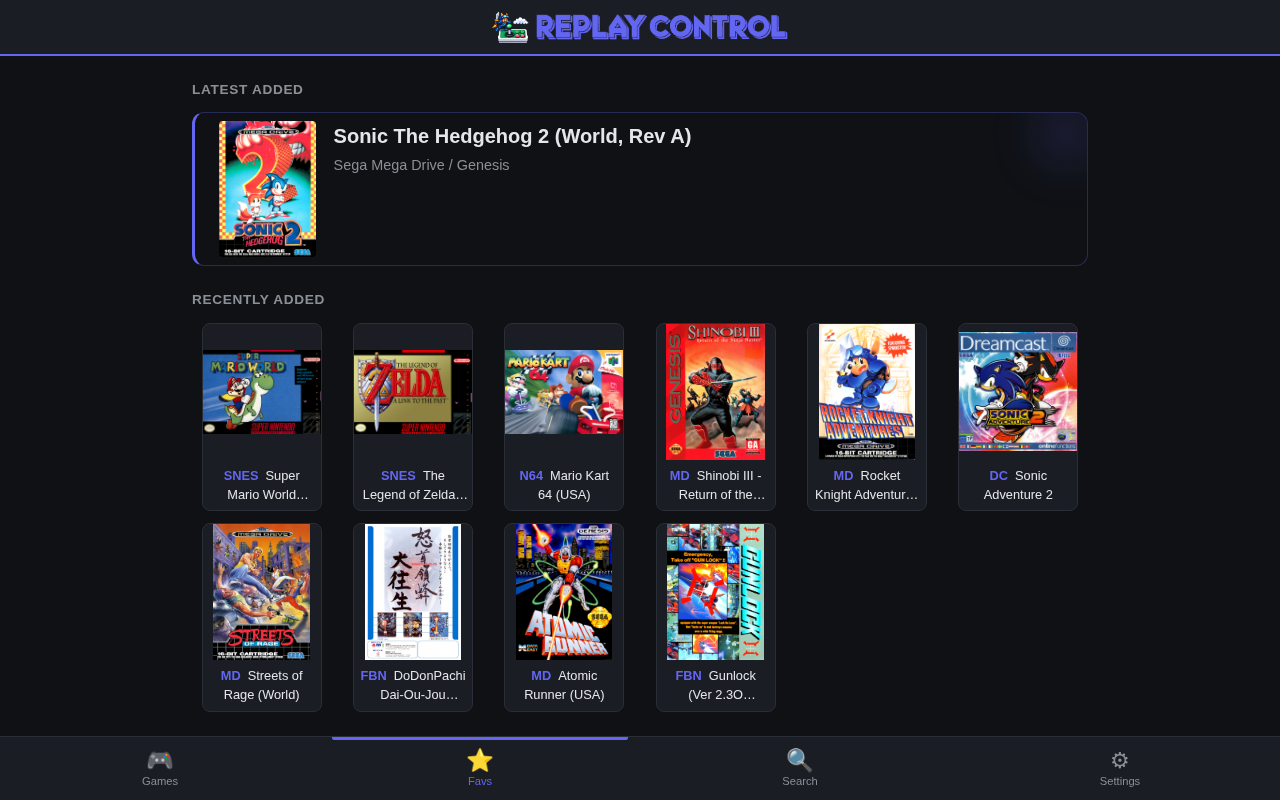
The main Favorites view highlights the list from a few useful angles:
- A featured card for the most recently favorited game
- A recently added row sorted newest first
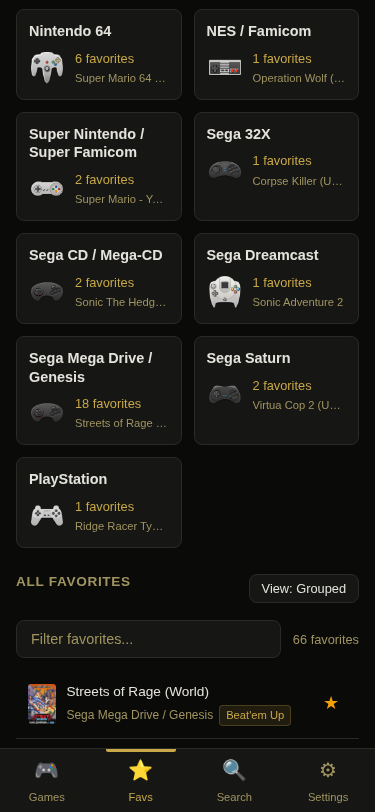
- Per-system groups showing where your favorite games live
- A flat list mode when you prefer one continuous list
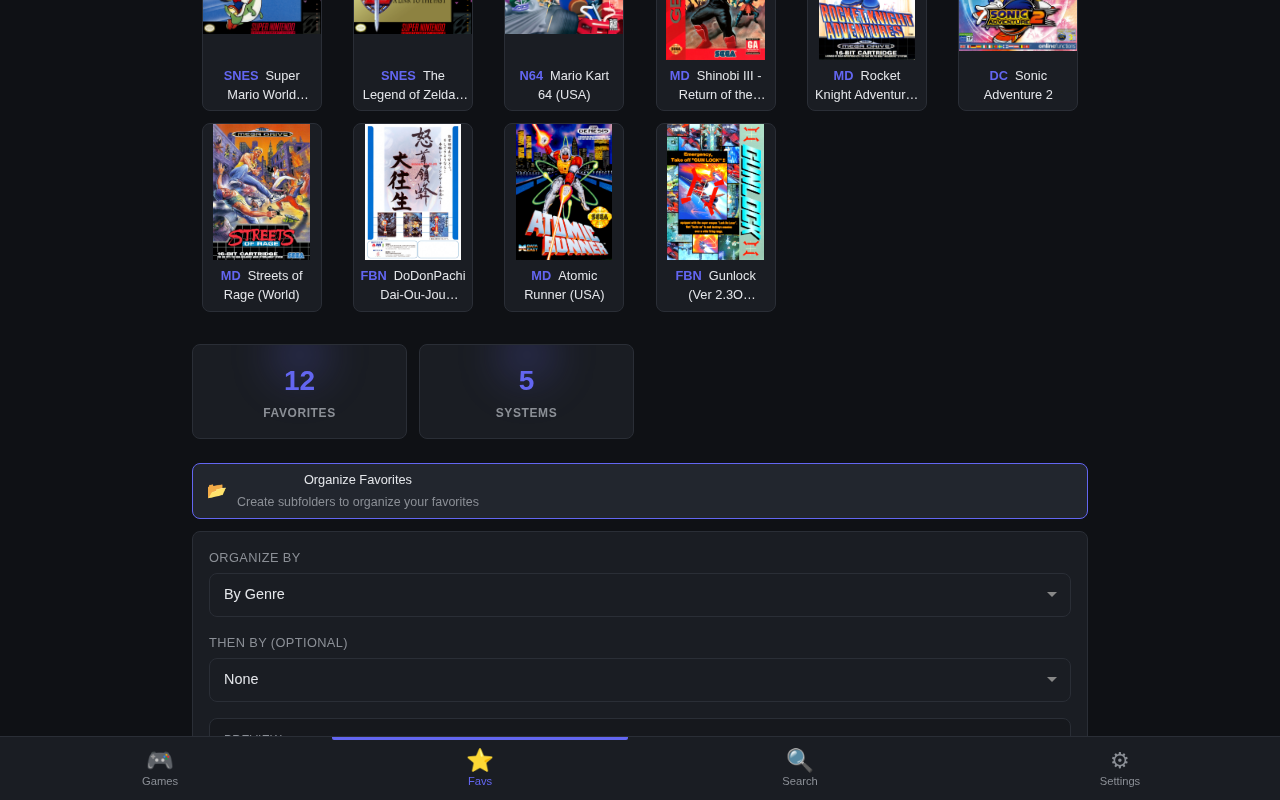
Organization Preview
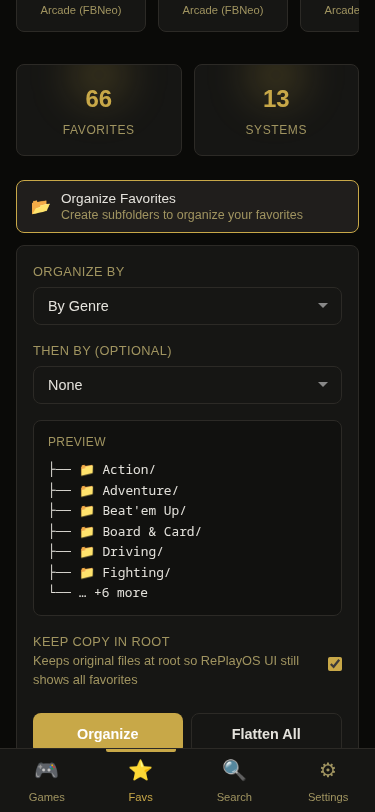
The organization tool is the page’s power feature. It can reshape favorites into browsable folders without changing which games are favorited on RePlayOS.
Favorites can be grouped by one or two criteria:
- Developer
- Genre
- System
- Player count
- Rating
- Alphabetical range
Before applying a new organization, the preview shows the folders that will be created. Organized views stay in place until you change or clear them.
Adding and Removing Favorites
Use the star on a game card or game detail page to add or remove a favorite. The change is written to RePlayOS favorites, so the device and the web app stay aligned.
Removing a favorite asks for confirmation, so a stray tap does not silently remove a game from your shortlist.
If you remove a favorite from inside an organized folder, the game disappears from that view immediately.
Favorite-Based Recommendations
Favorites also feed personalized discovery:
- Because You Love [Game] finds games with related genre/developer signals
- More from [Series] surfaces other games in the same series that are not already favorited
See Recommendations for the full home-page and favorites recommendation model.